Jumbula User Guide

Page Intro/Instructions Go Here.

Getting Started

To get started you will need your company’s unique URL and the email associated with the Jumbula account

  • Example (https://rightatschool-elective-test-company.jumbula.com/Dashboard)
  • If you need your URL or email address, please email electives@rightatschool.com
  • If you are logging in for the first time, use “Forgot Password”.


Changing Password and General Information

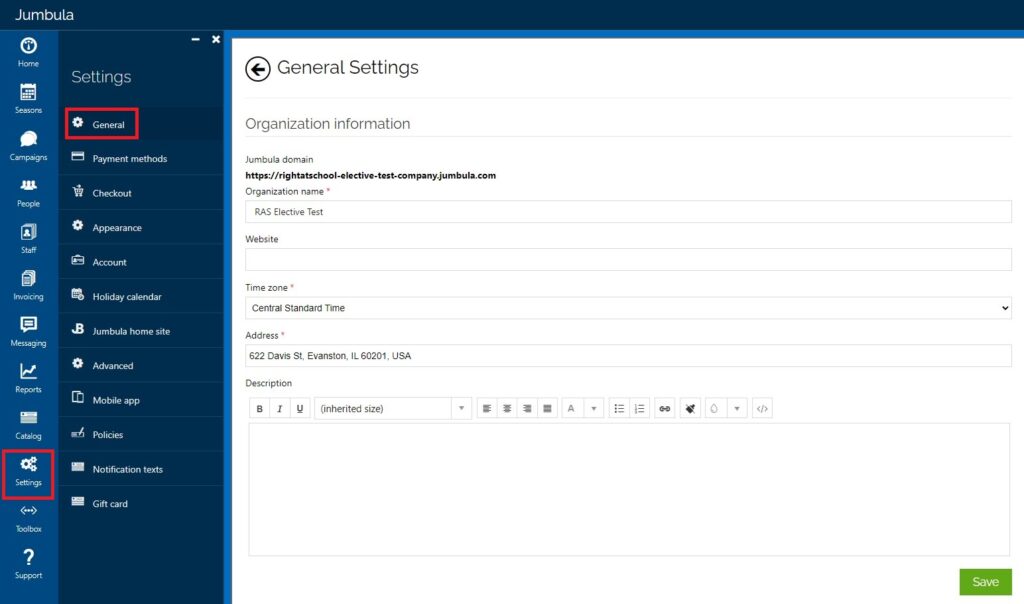
To update password or any general information that will be viewed by externally click on: Settings > General > Make Updates > Save

Finding Classes and Enrollment in Jumbula

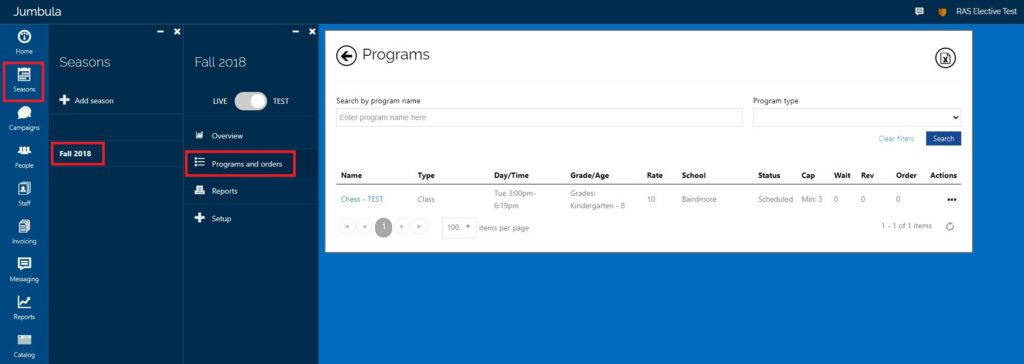
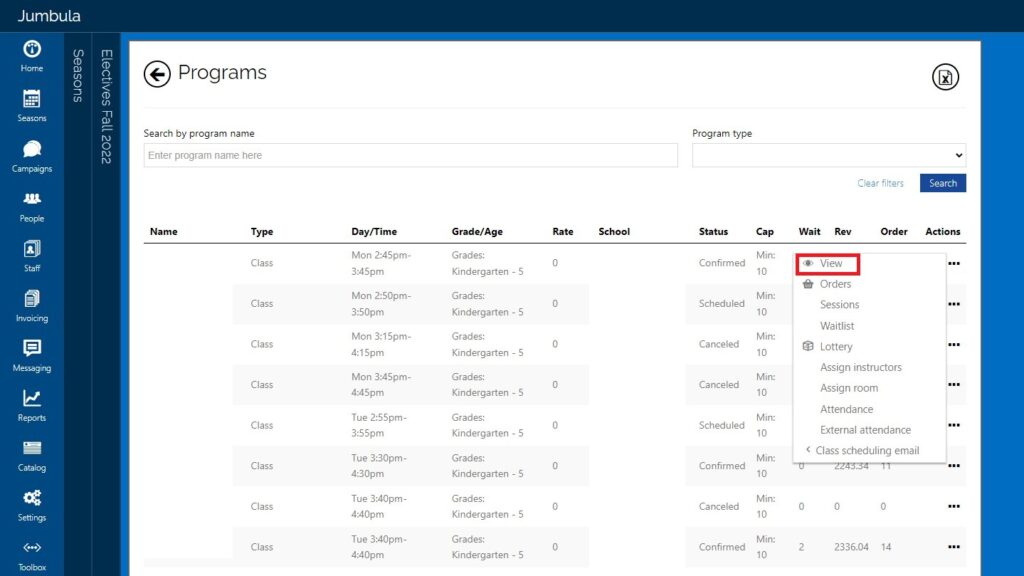
To find the programs that are scheduled for each season, click on: Seasons > Current Season (Season Year) > Programs and Orders

  • Class name
  • Class day and time
  • Grade range
  • School
  • Status
    • Confirmed – Class is scheduled and has reached its minimum number of enrollments.
    • Scheduled – Class is scheduled but has not reached its minimum number of enrollments.
    • Canceled – Class has been canceled for the session.
  • Cap: Min number of students
  • Waitlist: Number of students on waitlist
  • Rev: Total revenue for the class, including the Right At School management fee, and processing fee
  • Order: This is enrollment, the number of students enrolled in class

Finding Rosters and Parent Emails

Quick view of the roster click on: Seasons > Find the current season >  Programs and Orders > Hover your mouse over Actions (…) > Orders

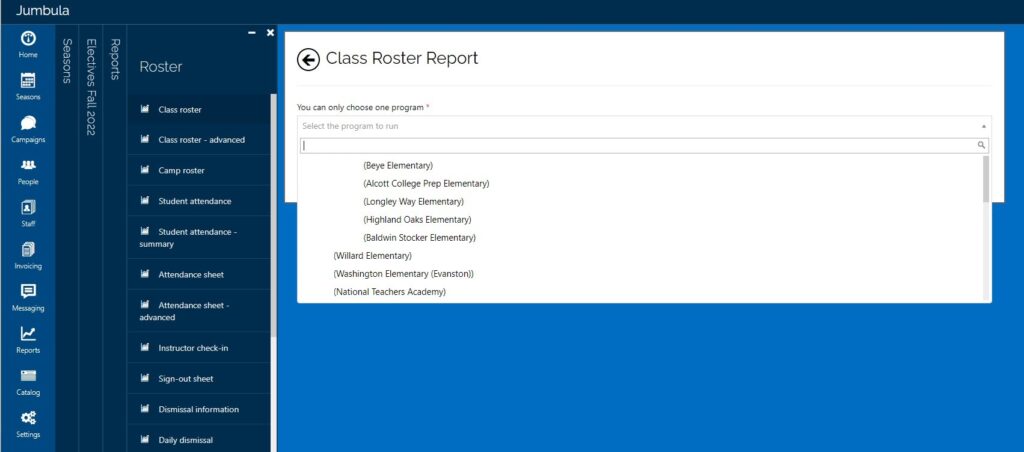
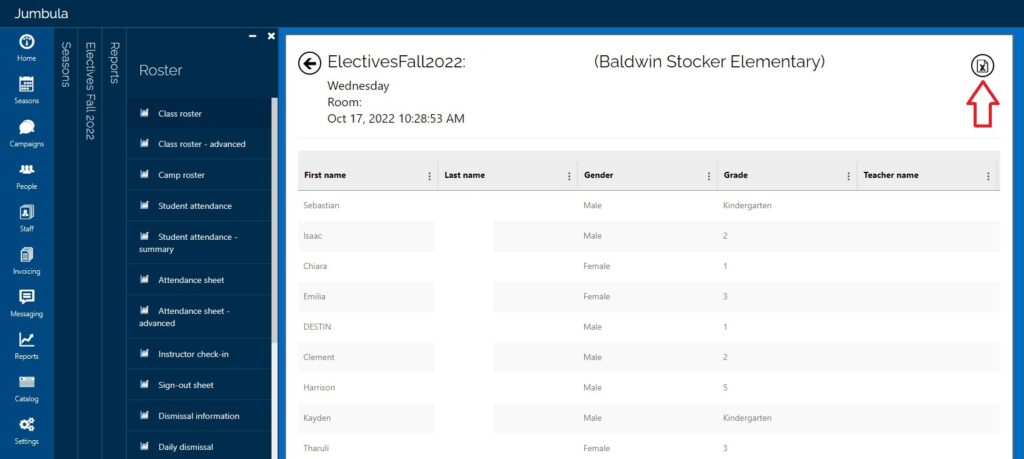
Download Roster click on: Seasons > Reports > Rosters > Class roster > click on the drop down to find the class > Click Run

To download click on the X on the top right corner

Finding the Direct Link to Each Class

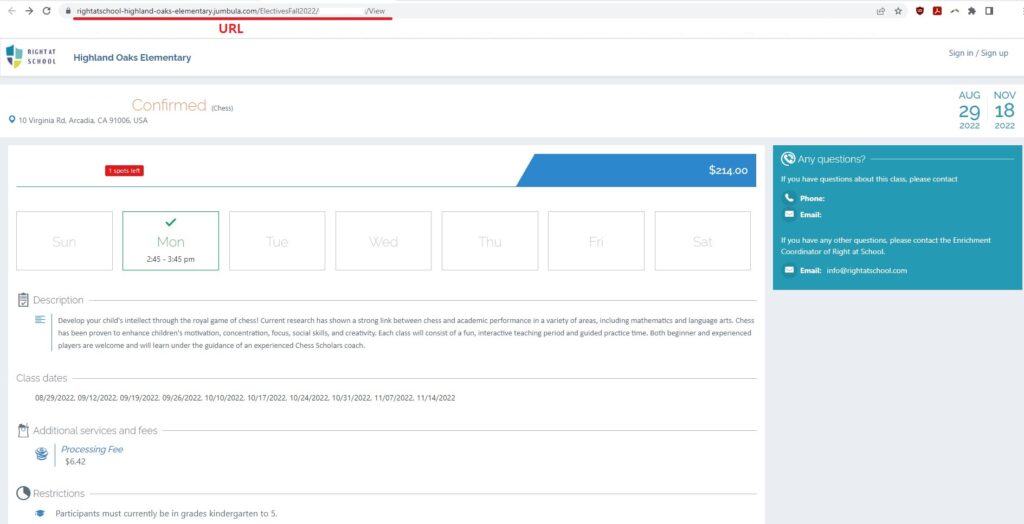
Click on Seasons > Current Season (Season Year) > Programs and Orders > Actions > View

In the description view, copy the entire URL to share.